8. Review: browsing recordings
Use Review to look at a recording before analysing it: check that every arena behaved normally, find flies that never fed, spot spilled food or loose arenas, and see how much data was lost to dropouts, if any. For recordings with video, Review also tracks the flies and exports videos with the traces.
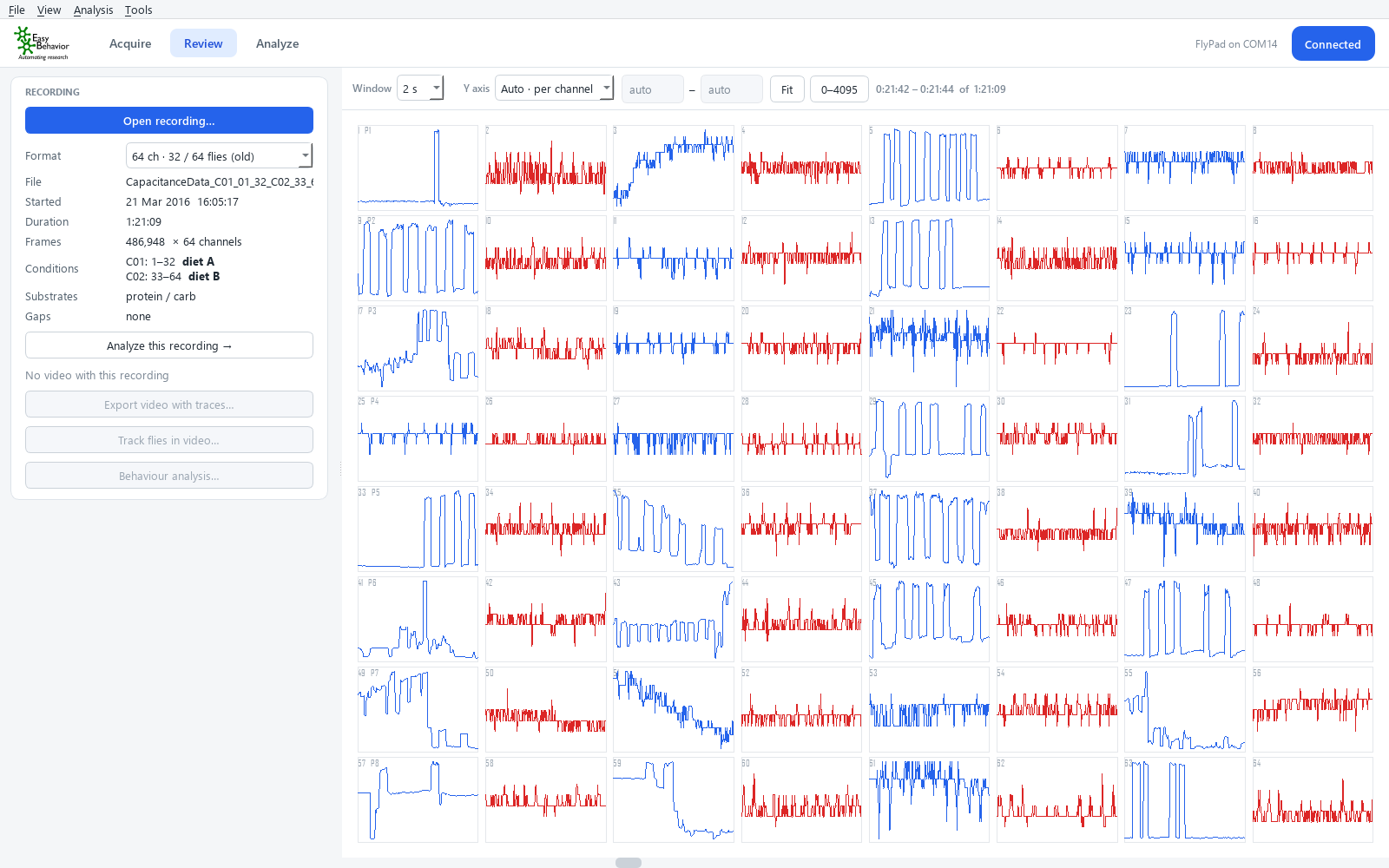
Open a recording
Click Open recording…, or use File → Open recording… (Ctrl+O), and choose a
CapacitanceData… file. Large files open in under a second.
The card shows:
| Field | Meaning |
|---|---|
| Format | 96 ch · 48 / 96 flies (current FlyPad) or 64 ch · 32 / 64 flies (old). Chosen from the data: read with the wrong channel count, every trace jumps between sensors at each sample. If you choose the wrong format, the card shows ⚠ the signals jump between sensors |
| File / Started / Duration / Frames | The recording and its length |
| Conditions | Channel ranges and their labels |
| Substrates | Food labels, from the Log_…txt next to the recording |
| Gaps | Number and total length of dropouts, if any. For a long recording it reads scanning… for a few seconds while the whole file is checked; you can browse meanwhile |
Navigate
- Drag the scrollbar under the traces, or turn the mouse wheel over them, to move through time. The time shown appears at the top right, e.g. 0:21:42 – 0:21:44 of 1:21:09.
- Window sets how much time is shown, from 2 s (single sips) to 60 s (feeding patterns).
- Y axis works as in the live view.
- Dropouts appear as breaks in the traces.
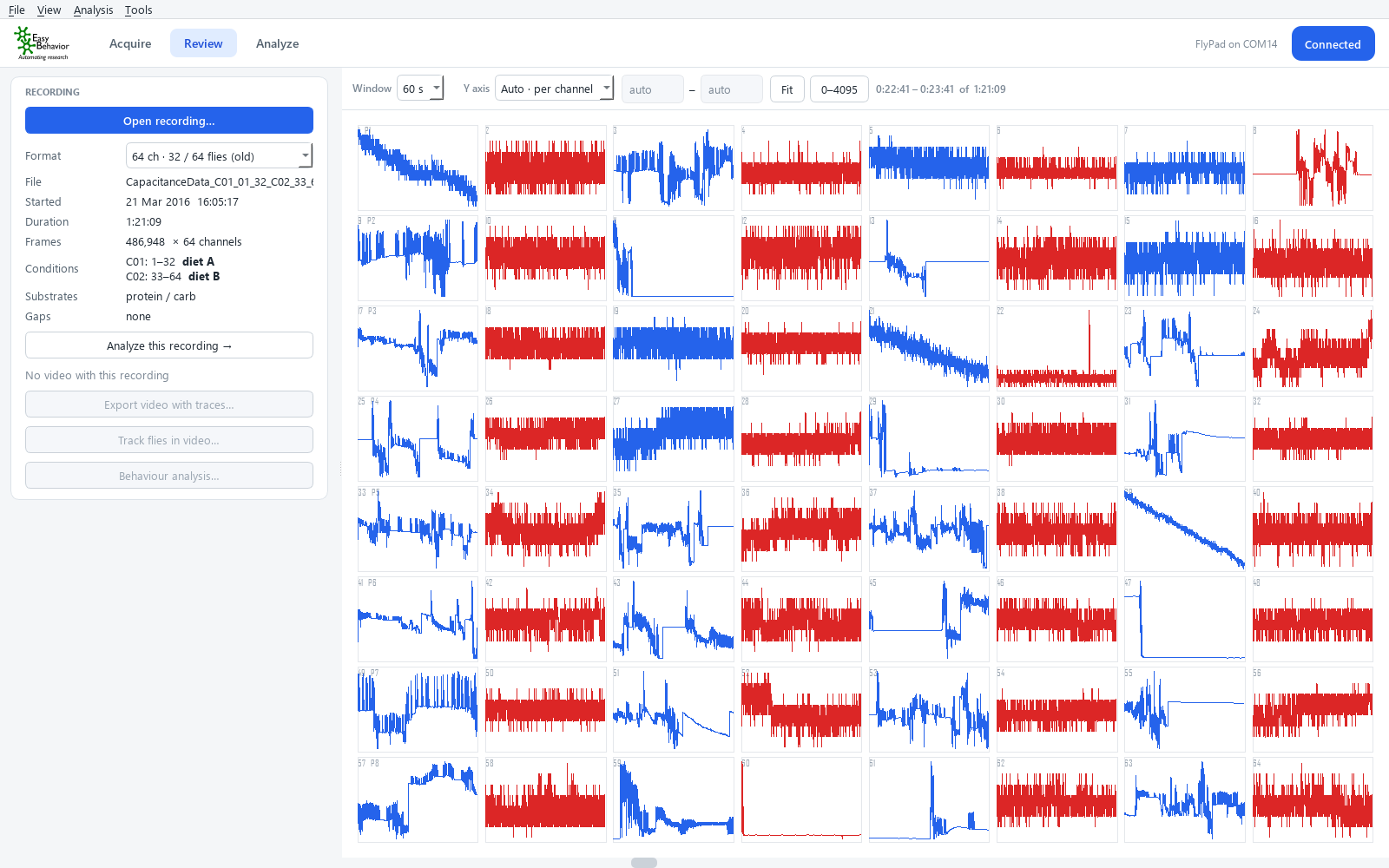
Recordings with video
When a video was recorded with the recording, the card shows it, and three more buttons appear.
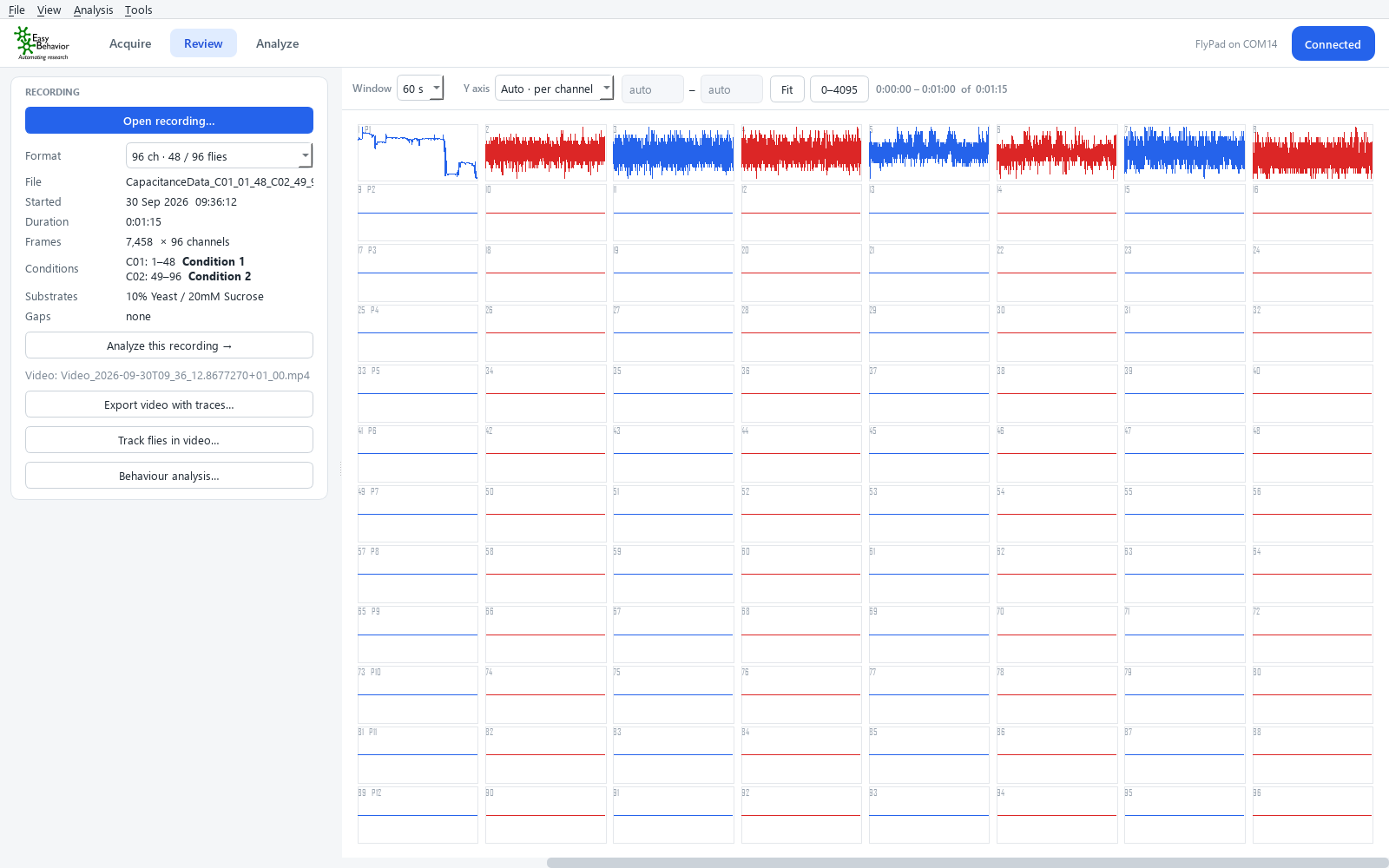
Track flies in video…
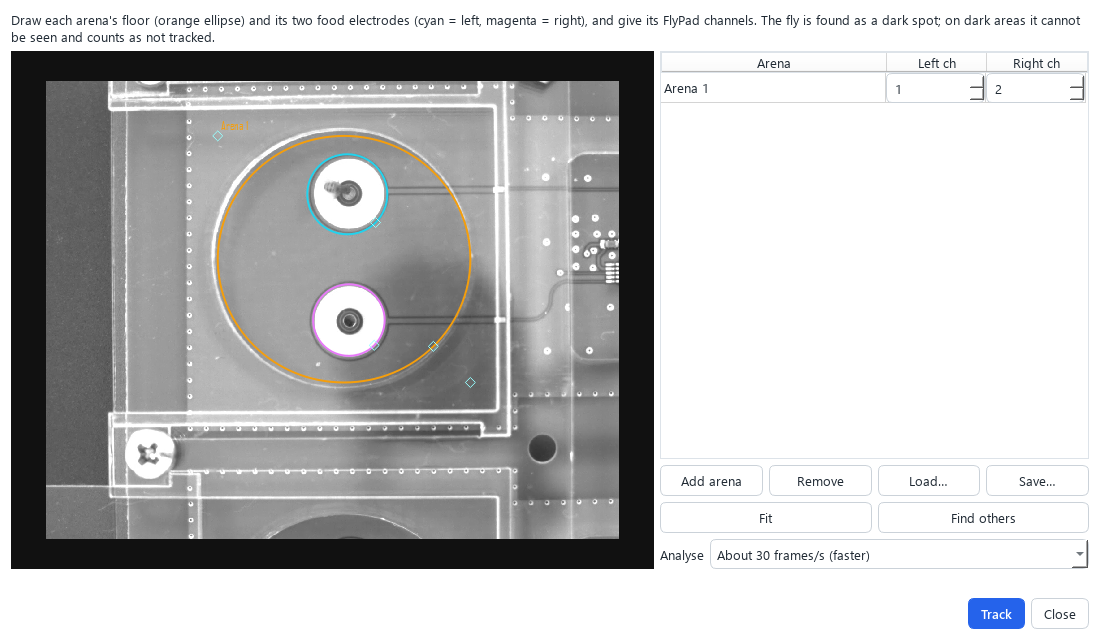
Finds each fly’s position in every frame and combines it with the feeding data: speed, time on each food, the fly’s position at each sip, and speed inside and outside feeding bouts. The arenas are those of live tracking (or draw them as in Live tracking). Under Analyse, choose:
| Option | When |
|---|---|
| Live tracking results (instant) | Offered when live tracking ran during the video. Uses the positions saved while recording: a 20-minute video takes about 15 s instead of 5 minutes, with the same results |
| About 30 frames/s (faster) | Tracks the video again, every second or third frame |
| Every frame | Tracks every frame of the video again |
Track the video again when the arenas were changed after the recording, or when live tracking was not running for the whole video.
Results, next to the video:
| File | Content |
|---|---|
Video_<…>_tracking.csv |
Every analysed frame of every fly: video frame, time in the recording, position (raw and smoothed), speed, zone (left food, right food, off food), inside a feeding bout or not, and filled (1 = assumed position: the fly sat still and was not seen) |
Video_<…>_activity.xlsx |
Summary per arena: tracked %, speed, moving %, time on each food, sips with the fly on that electrode, speed inside and outside feeding bouts |
Video_<…>_activity.png |
Overview figure |
Sips with the fly on that electrode is a quality check: it should be close to 100 %. A low value means the arena was drawn wrongly, its channels are swapped, or the electrode has artefacts.
Export video with traces…
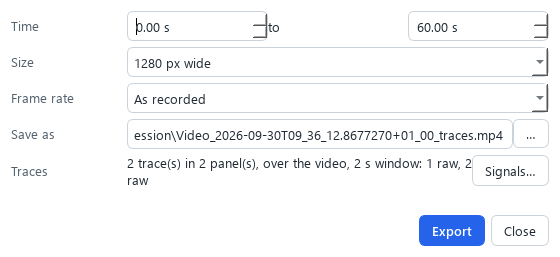
Makes a new video with the traces drawn below or over the image, as in the camera view (its Signals and Layout), for presentations and checking. Choose the Time span, the Size and Frame rate, and where to save it. The export runs in the background.
Behaviour analysis…
Opens the behaviour analysis with this recording.
From Review to analysis
Click Analyze this recording →. The analysis wizard opens with this recording’s folder, and its labels, already filled in. See Analyze.